
Keep every printer busy with the Smart Queue
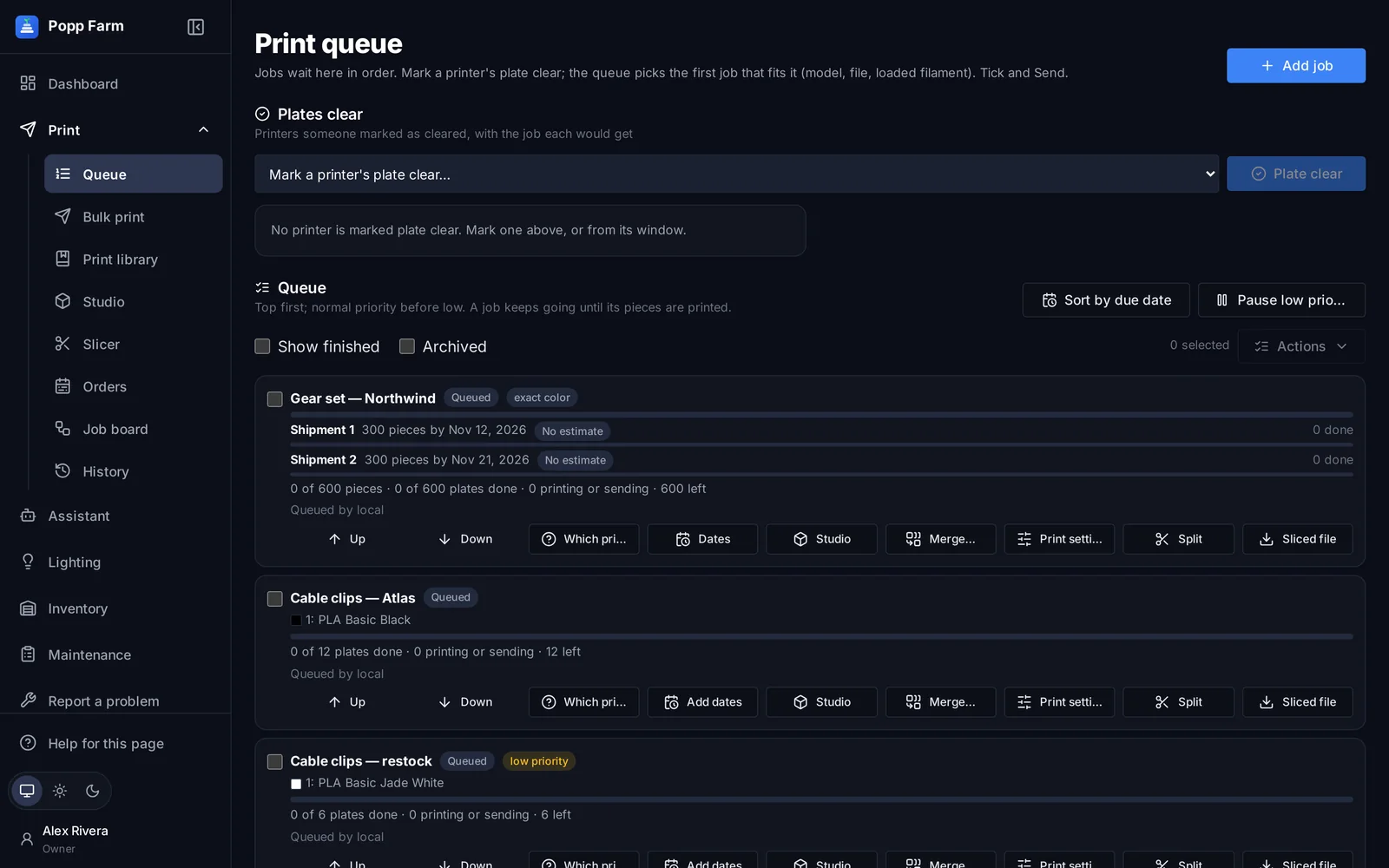
Add jobs once, let the queue match them to printers with the right colors, and send the next plate the moment one comes off.
-
Add jobs
Add a file from the library, an upload or an order design. Set the number of pieces, the colors (from your inventory) and the print settings.
-
Give jobs a due date or phases
Each job can have a completion date, or phases for staged shipments. The queue shows Done, On track, At risk or Late for each phase.
-
Use suggestions
Suggestions show which jobs to move up to make every date. Use suggested or Sort by due date applies them — nothing reorders by itself.
-
Plate clear → Send
When a plate comes off, a person marks the printer Plate clear. The next job that fits that printer and its loaded colors is ready to send with one tap.
- Jobs are sliced for each printer model automatically
- "Any of the material" jobs use whatever matching spool is loaded
- Every plate is followed through History until it finishes
Every screen in this guide has a full article in the Help centre inside Popp Farm.
More guides
Getting started with Popp Farm
Create your workspace, connect your Bambu Lab account, invite your team and send your first plate.
Read →Multi-color printing across a mixed fleet
Color single parts in Studio, map every color to an AMS slot, and slice the same project for any Bambu Lab model.
Read →Plan a big order across the fleet
Turn an order with ship dates into a day-by-day printer plan, then feed the queue from it.
Read →Put your whole farm on one screen
Start free with up to 3 printers, or try any paid plan free for 14 days. Connect your Bambu Lab account and your printers appear in minutes.
No install · No LAN setup · Nothing prints until a person says the plate is clear