
Everything Popp Farm does, in one place
Twelve tools that share one fleet, one queue and one set of records. Each one is listed below with everything it can do, and each has its own page with the details.
See the floor
Plan and deliver
Keep it running
Team and insight
Fleet dashboard
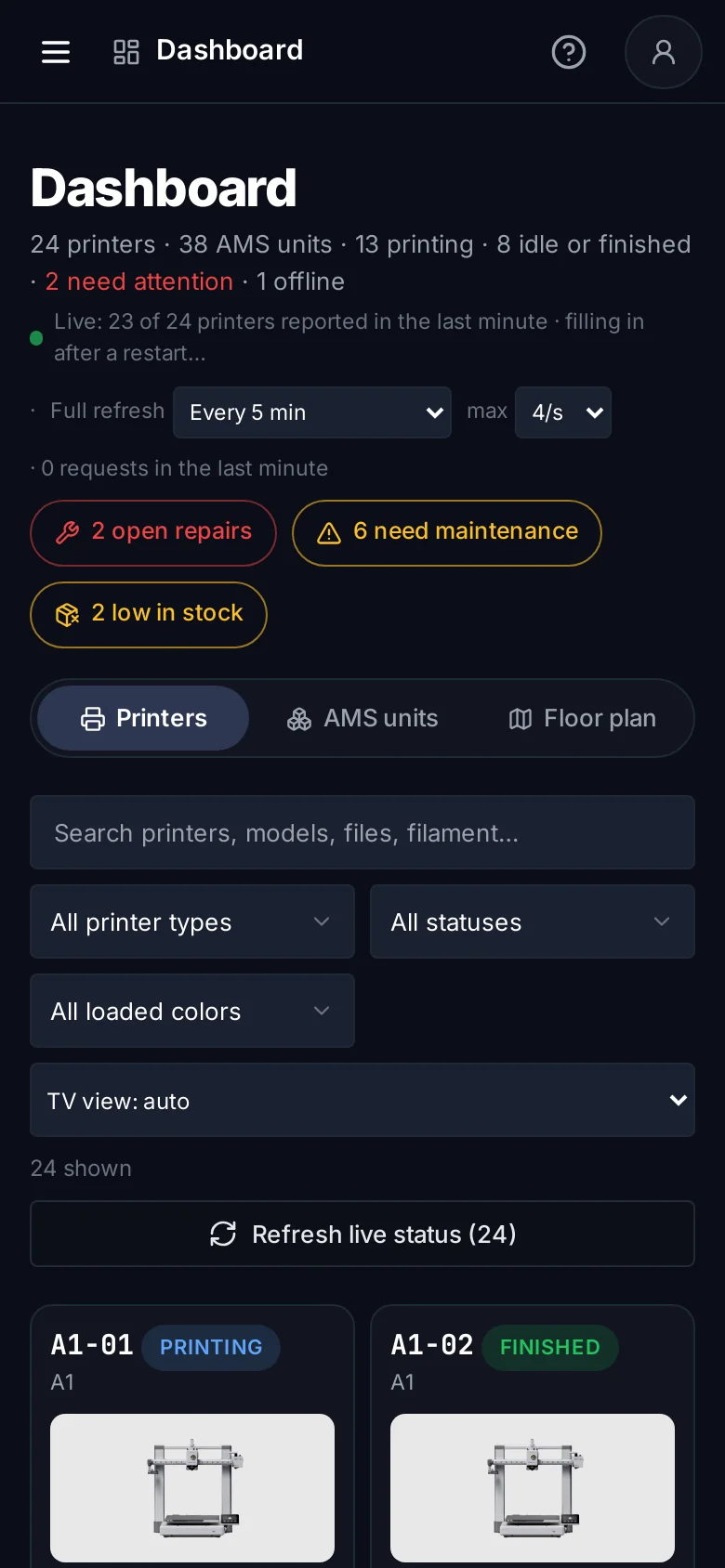
Every Bambu Lab printer you run, what it is printing, how long is left, which spools are loaded, and which printers need a person right now. Read from your Bambu Lab account, with nothing to install.
Explore fleet dashboard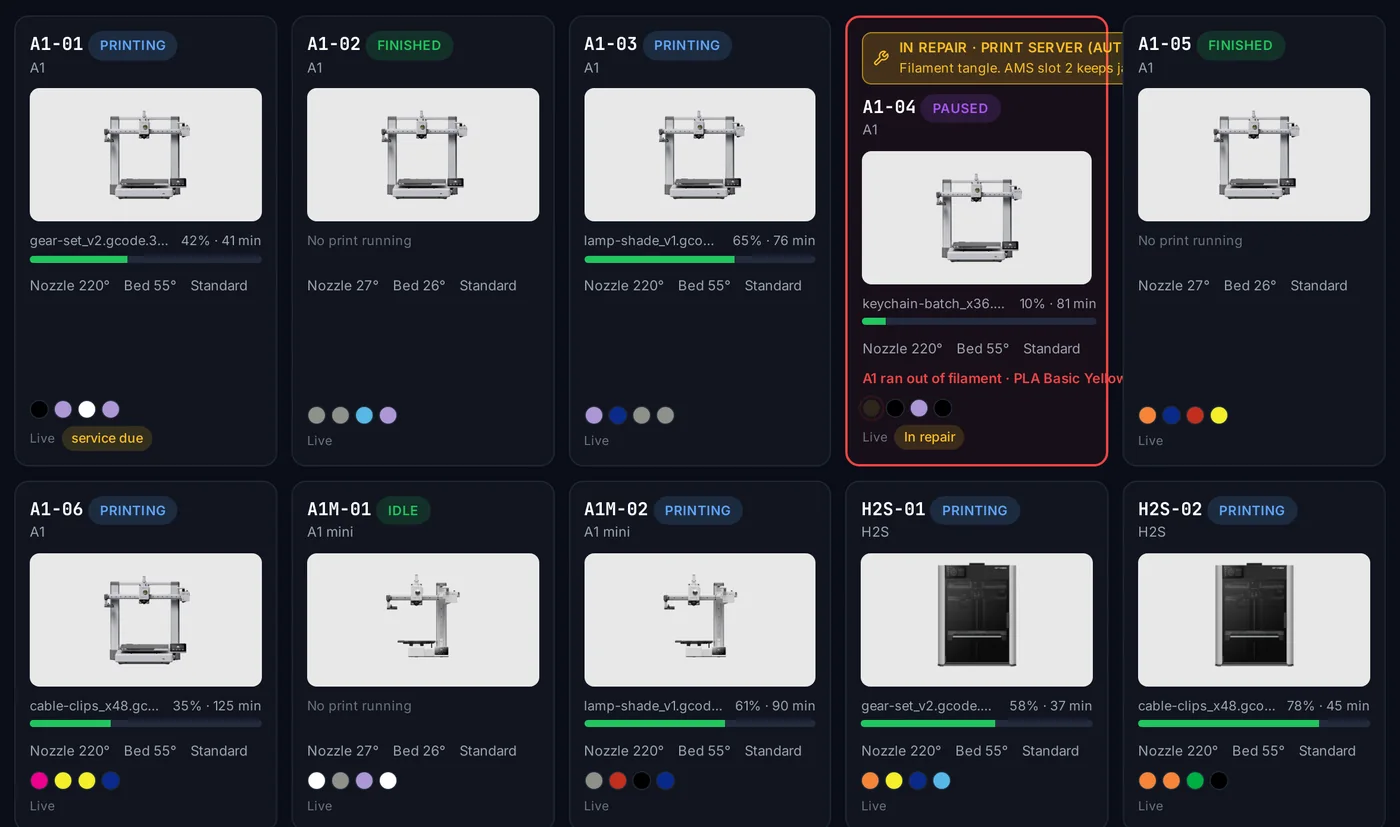
Live printer cards
File, progress, layer, time left, temperatures and AMS colors.
Attention bar
Errors, open repairs, service due and low stock counted at the top.
Filters and search
By model, status, loaded color, file or filament.
AMS view
Every AMS unit and slot across the fleet.
Floor plan view
Chosen sections shown shelf by shelf.
TV view
Compact cards and a screen that stays awake.
Light and dark themes
Pick one, or follow the device.
Repair and service bars
Printers in repair are flagged on their card.
No LAN setup
Runs through your Bambu Lab account.
Cameras and controls
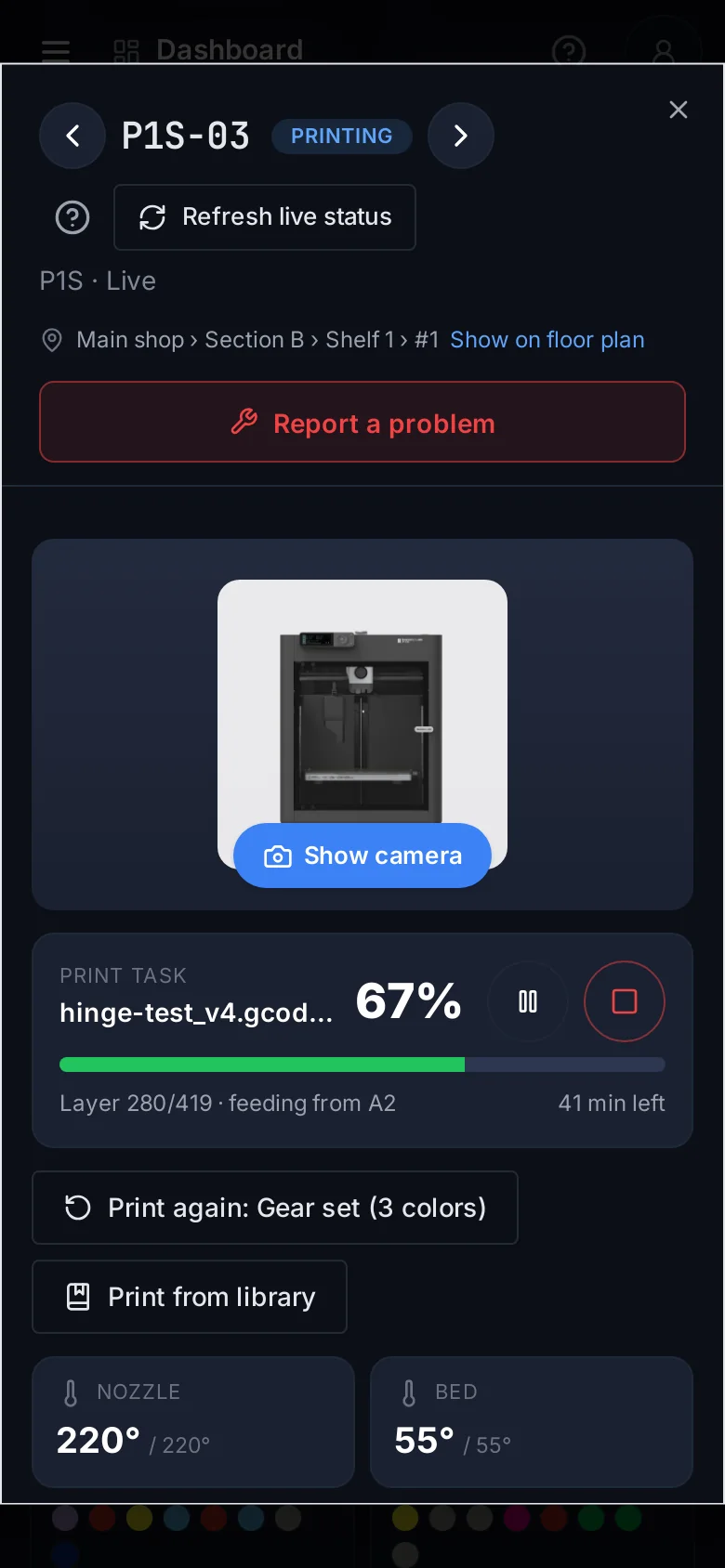
Each printer has a window with its live camera, job, controls, AMS slots and where it stands on your floor. People with the right can pause, stop, change temperatures or calibrate, and every action is logged.
Explore cameras and controls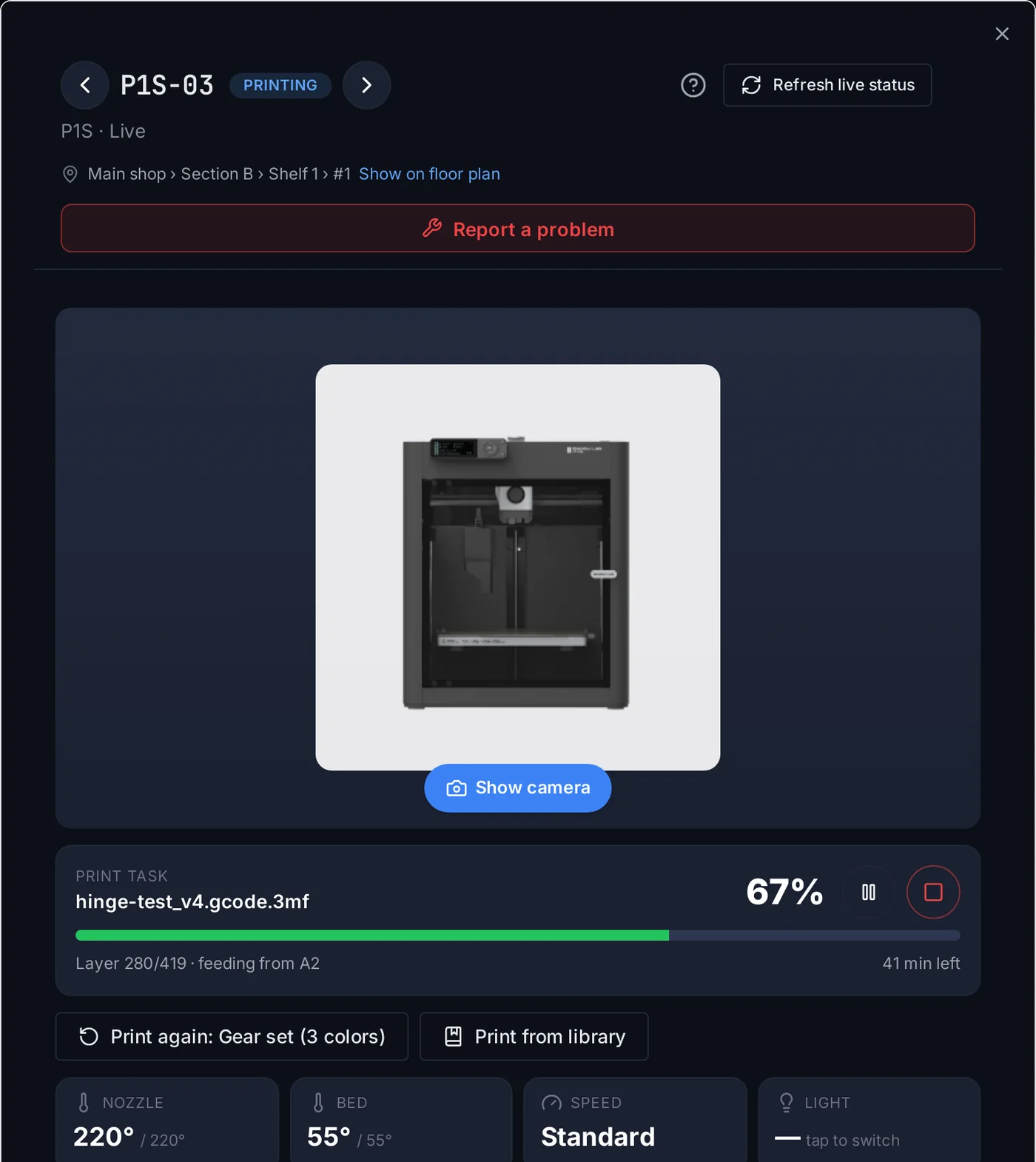
Live camera
Through Bambu Lab’s cloud, up to four at once.
Pause, resume, stop
For people with the right, all logged.
Temperatures, speed, light
Nozzle and bed targets, speed mode, chamber light.
Move pad
Home and X/Y/Z moves with the camera on.
RFID re-read
Re-read one AMS slot’s spool.
Calibration
Bambu Lab’s calibration on one or many printers.
Hardware and firmware
Model, printer and AMS firmware, recorded automatically.
Fleet-wide Auto-Refill
Set the printers’ own Auto-Refill in one place.
QR codes
Sticker sheets or label rolls; a scan opens the printer.
Floor plan and lighting
Draw your shop: rooms, shelving sections, shelves and places, doors, desks and packing stations. Every printer gets a home that shows in its window and on the dashboard. Add LED strips and the shelves glow with each printer’s status.
Explore floor plan and lighting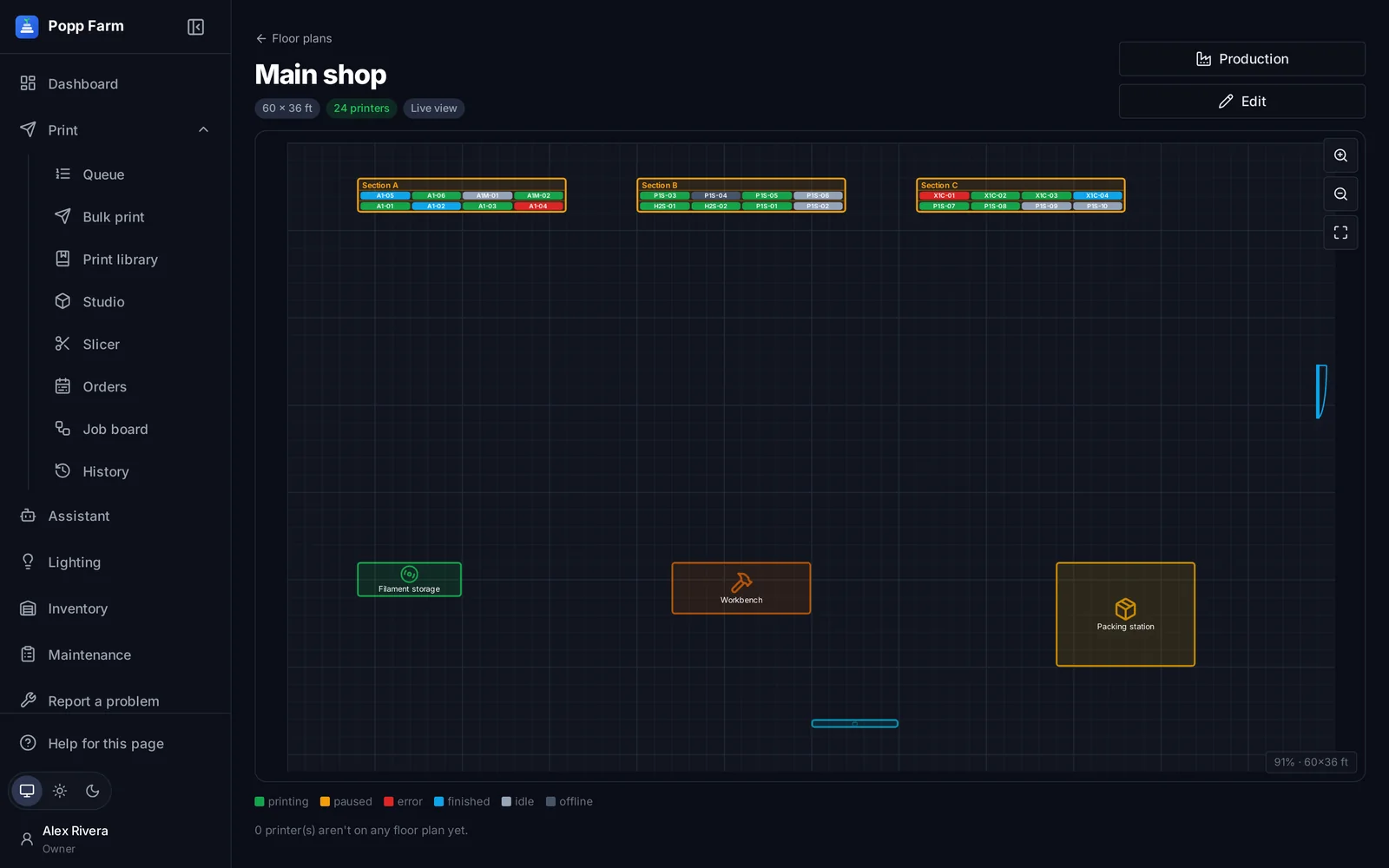
Rooms, sections, shelves, places
Draw the shop to scale.
Doors, desks and assets
Packing stations, filament storage, TVs.
Location on every printer
In its window, with Show on floor plan.
Live view
Printers colored by status.
Production view
Printers assigned to order designs per day.
WLED shelf lights
Each printer’s place lit by status.
Optional hardwareLocate
Flash one printer’s light.
Optional hardwareSmart print queue
Add a job once, in pieces or plates, and the queue matches each plate to a printer with the right model and colors loaded. A person confirms the plate is clear and taps Send. Nothing prints by itself.
Explore smart print queue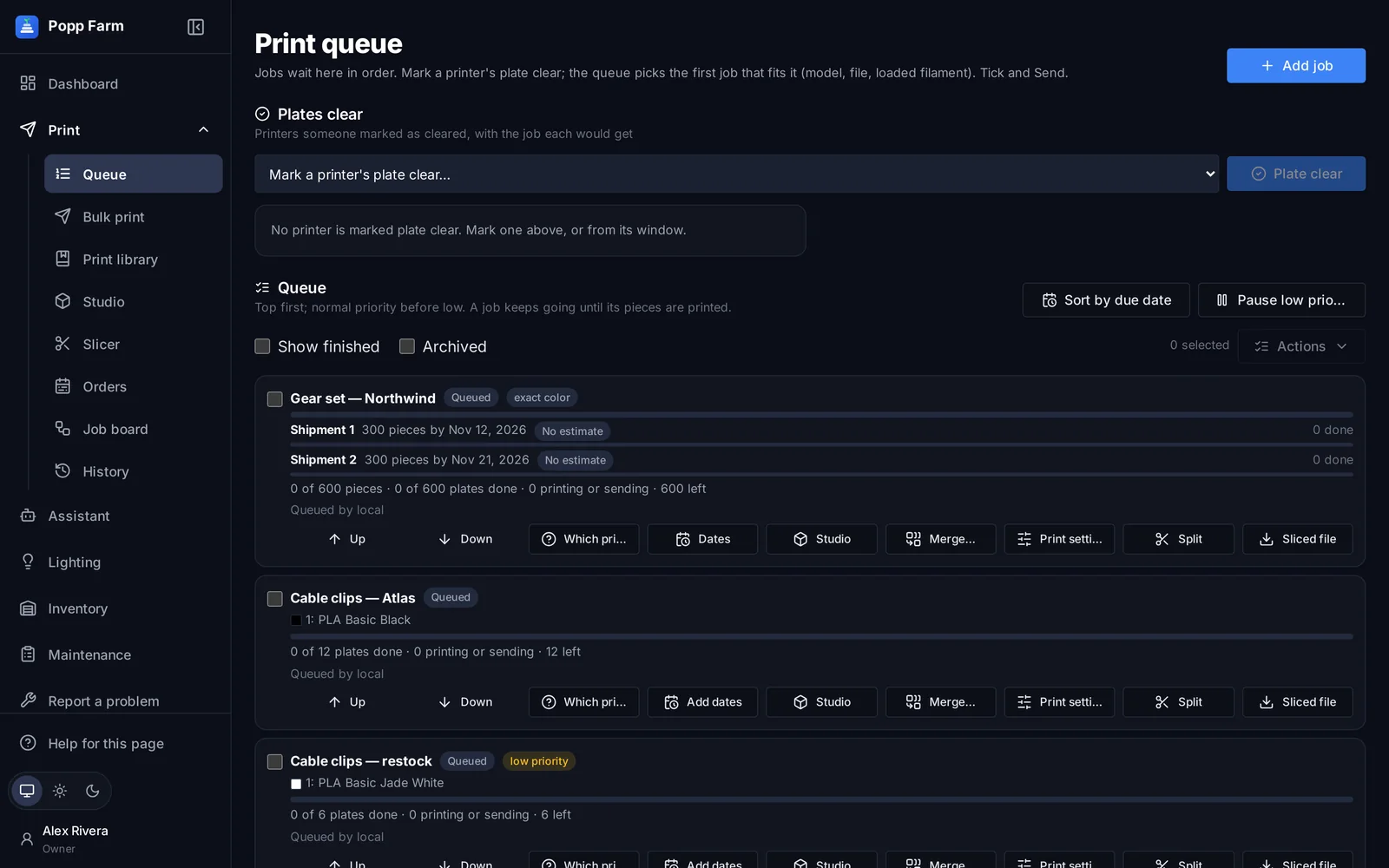
Plate clear, then Send
A person confirms every plate before it is sent.
Exact color matching
Same Bambu filament code and color, slot by slot.
Which printers can take it
See every printer that fits a job, and why others don’t.
Pieces and plates
Plates are counted against the pieces you need.
Shipments with dates
Done, On track, At risk or Late for each one.
Suggestions
Use suggested, or Sort by due date when you ask.
Priority and tags
Low priority pause, printer tags and model limits.
Split, merge, archive
Reshape jobs as plans change.
Send next job
Right from a printer’s window.
Studio and cloud slicer
Studio opens a project, shows its plates in 3D and lets you arrange parts, pick any Bambu Lab printer, colors and every Bambu Studio setting. Then it slices with Bambu Lab’s own engine and previews every layer.
Explore studio and cloud slicer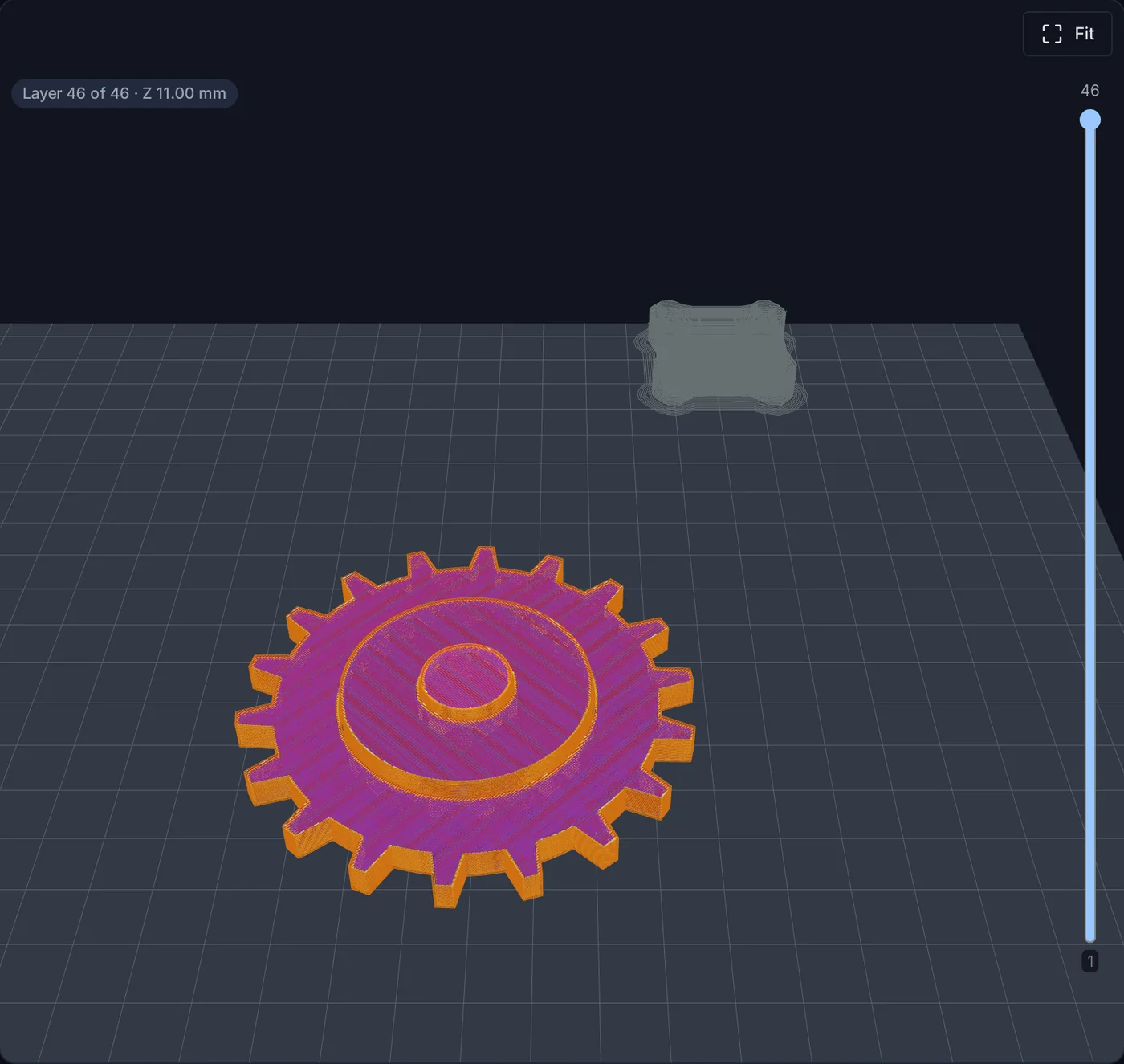
3D plates in the browser
Move, turn, size, copy, delete, lay flat.
Arrange by real outline
With spacing and turning to fit.
Every Bambu Studio setting
Process, filament and printer tabs.
Per object and height range
Settings at any scope.
Pauses and color changes
Or custom G-code at any layer.
Sync from a printer’s AMS
Its loaded slots become the project’s colors.
Layer preview
Line types, filaments, time and grams.
Print settings profiles
Used by bulk print, the library, queue and orders.
Never changes the original
Every save is a new copy.
Bulk print and library
Upload a 3MF or STL and pick printers. Popp Farm checks each one, its model, nozzle, state and which AMS slot holds each color, before a person sends to all of them at once.
Explore bulk print and library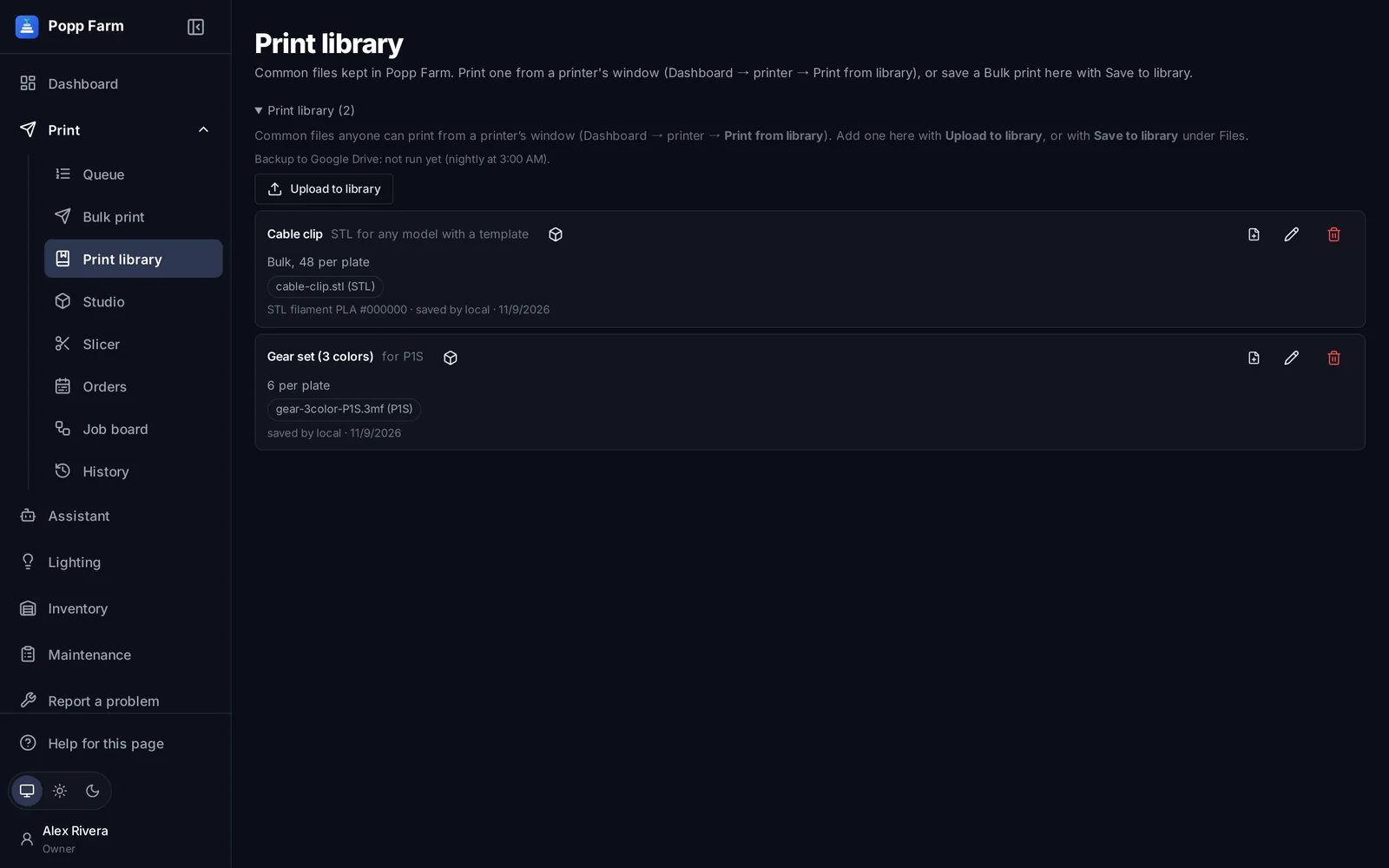
3MF, sliced files and STL
Sliced files sent as they are; projects sliced per model.
Checks per printer
Model, nozzle, state, filament code and color.
Send to many at once
After a person confirms the plates are clear.
Print library
Saved files with their settings, backed up nightly.
Print from a printer
From its window, with the same checks.
Same-filament substitutes
Pick another color per printer; no re-slice.
Orders and planning
Enter an order’s designs and shipment dates. Popp Farm plans the work across your real printers, day by day, with every active order sharing the fleet, and shows when each shipment will be ready.
Explore orders and planning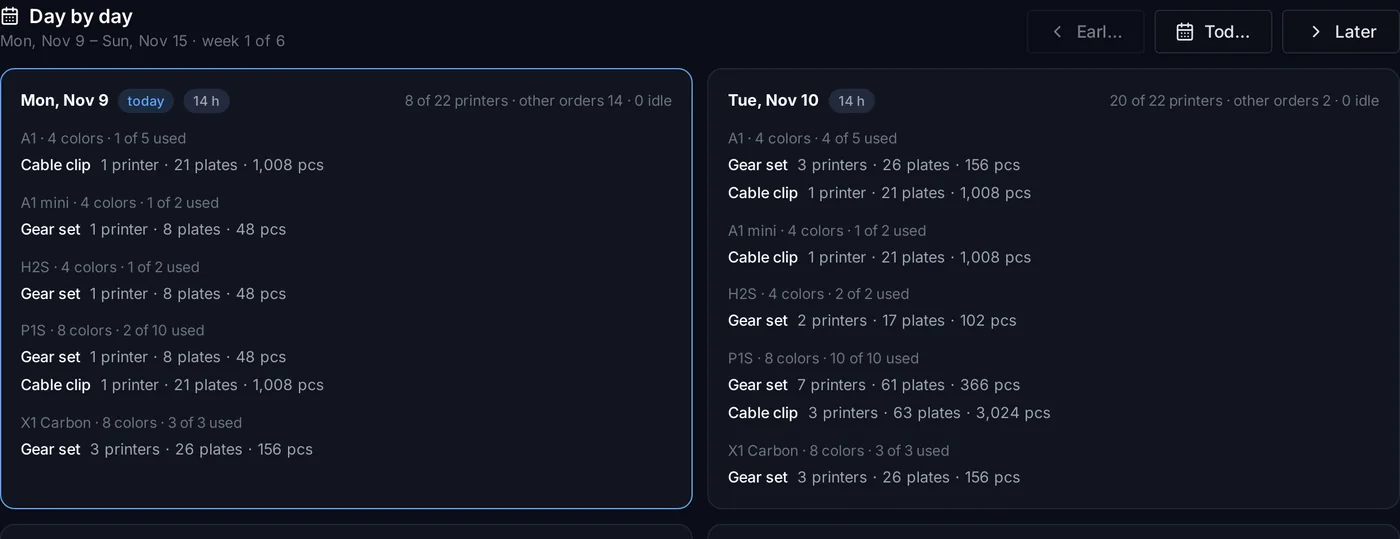
Designs and shipments
Quantities, plate times and dates.
Day-by-day plan
Across real printer groups and colors.
Shared fleet
Every active order planned together.
Ready-by and at-risk
For every shipment.
Send to queue
With the design’s file and colors.
Tracking and calendar
Made, packed, shipped.
Production view
Printers per design per day on the floor plan.
Slack
Shipment updates and a daily reminder.
OptionalInventory
Track filament by the spool, spare parts and packaging. Popp Farm shows which printers have each filament loaded right now, warns before you send a print you can’t finish, and emails when stock runs low.
Explore inventory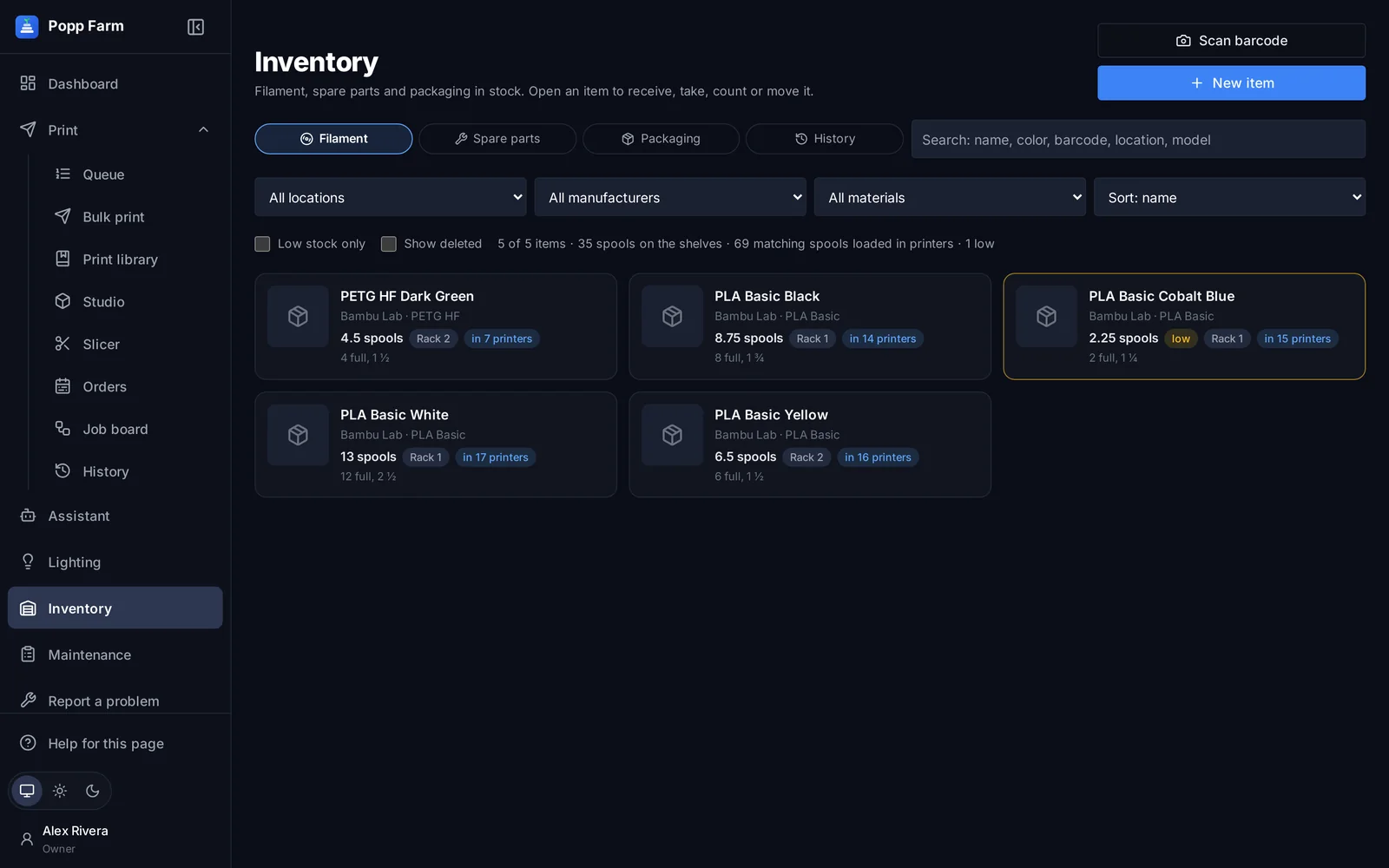
Filament, parts, packaging
One list, three kinds.
Spools by fullness
Full, ¾, ½ and ¼.
Where it’s loaded
Printers with each filament in their AMS now.
Low-stock email
When an item drops below its minimum.
Warnings before printing
On Bulk print when stock is low.
Barcode scanning
Receive, take or count with a scan.
History
Every change, who made it and when.
Maintenance and repairs
Anyone can report a problem in two taps from a printer’s QR code. Repairs are assigned, started and closed with the parts they used, and every printer and AMS unit has a service schedule and a log.
Explore maintenance and repairs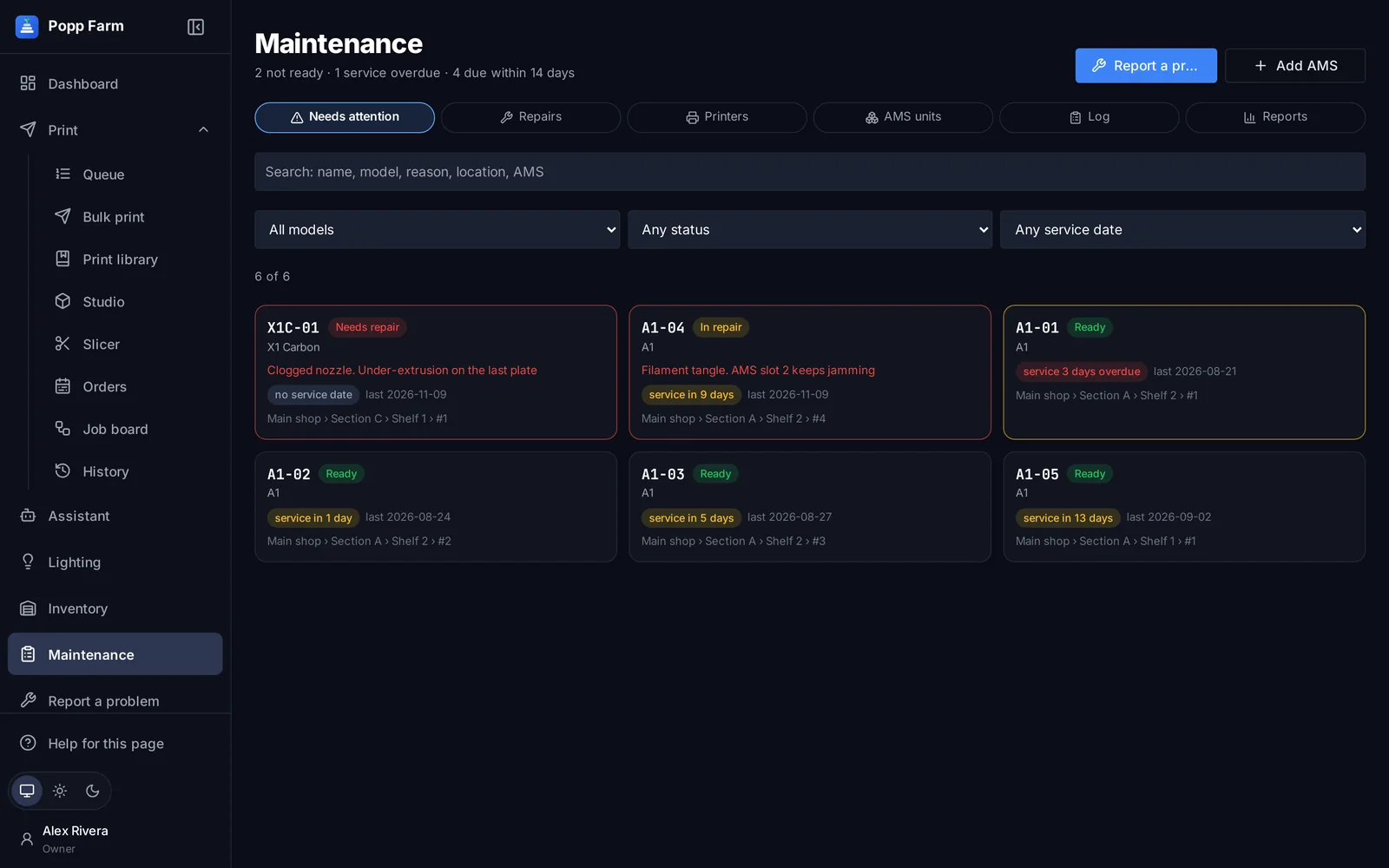
Report a problem
Two taps on a phone, from a QR scan.
No double reports
An open repair is shown instead.
Repair workflow
Assign, start, Bambu Lab ticket, parts, close.
Parts from inventory
Taken and recorded on the repair.
Service schedule
Next service per printer and AMS unit.
AMS units
By sticker number, attached to their printer.
Maintenance log
Service, repairs and status changes.
Response times
Wait times by kind, hour, day and printer.
Print history
History records every print from the printers’ own reports, whether it came from Popp Farm, Bambu Studio, Bambu Handy, the printer’s screen or an SD card: file, printer, start, end and outcome.
Explore print history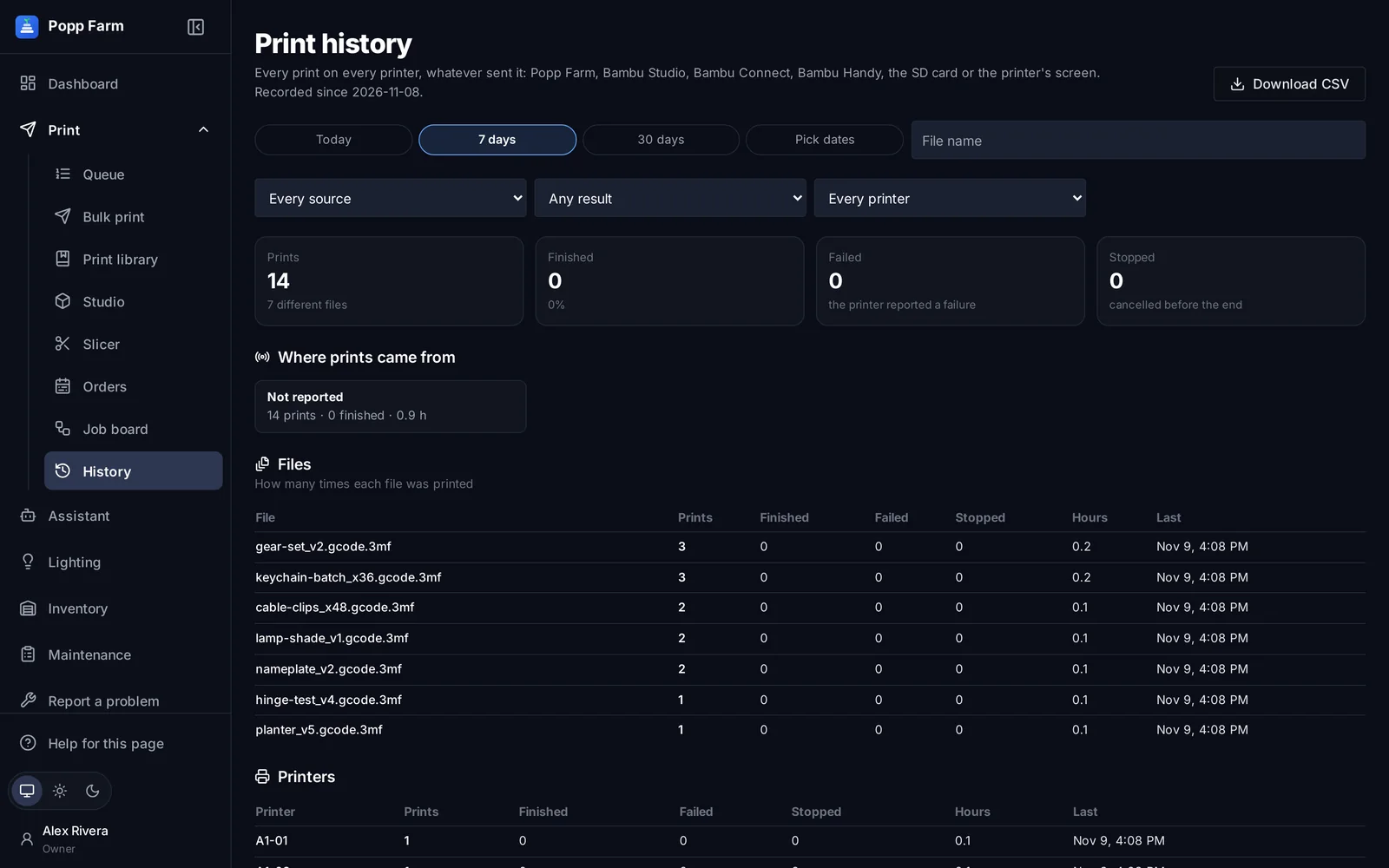
Every source
Popp Farm, Bambu Studio, Handy, SD card, the printer’s screen.
Outcomes
Finished, failed and stopped.
By file and printer
Counts and hours.
Date ranges
Today, 7 or 30 days, or pick dates.
CSV export
For your own reports.
Nightly backup
Kept with your workspace’s backups.
Team and permissions
Invite people by email. Each has a role, Owner, Admin, Manager, Operator, Viewer or your own, plus single rights added or taken away, from more than 60 rights covering every menu and feature.
Explore team and permissions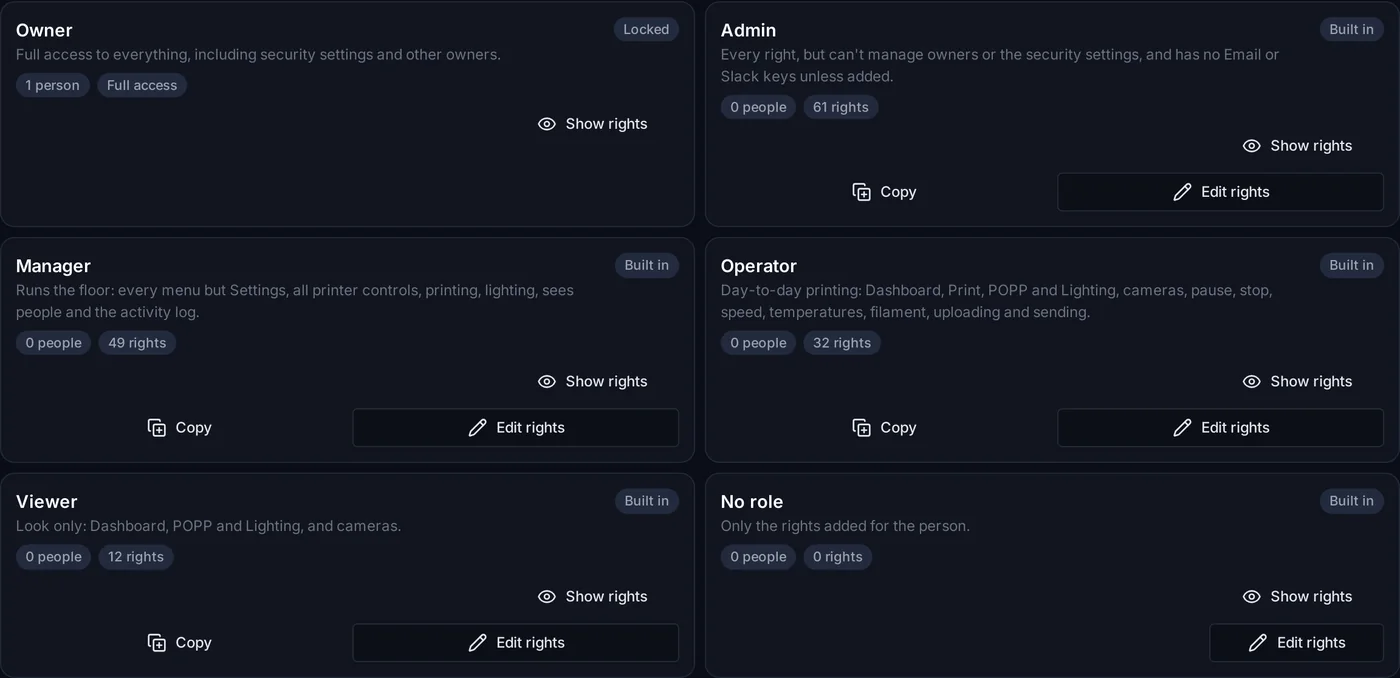
Invite only
People join by email invitation.
Built-in and custom roles
Owner, Admin, Manager, Operator, Viewer or your own.
60+ rights
Every menu and feature has its own.
End dates
Access that ends by itself.
Two-step sign-in
With a device list.
App tokens
For your own scripts and Claude.
Activity log
Sign-ins, sends, controls and changes.
Personal email alerts
Each person picks their own.
AI assistant
The Assistant answers questions about your printers, queue, history, stock, maintenance and orders in plain words. It sees only what you may see and changes nothing. Connect Claude Desktop or Claude Code to the same tools with your app token.
Explore ai assistant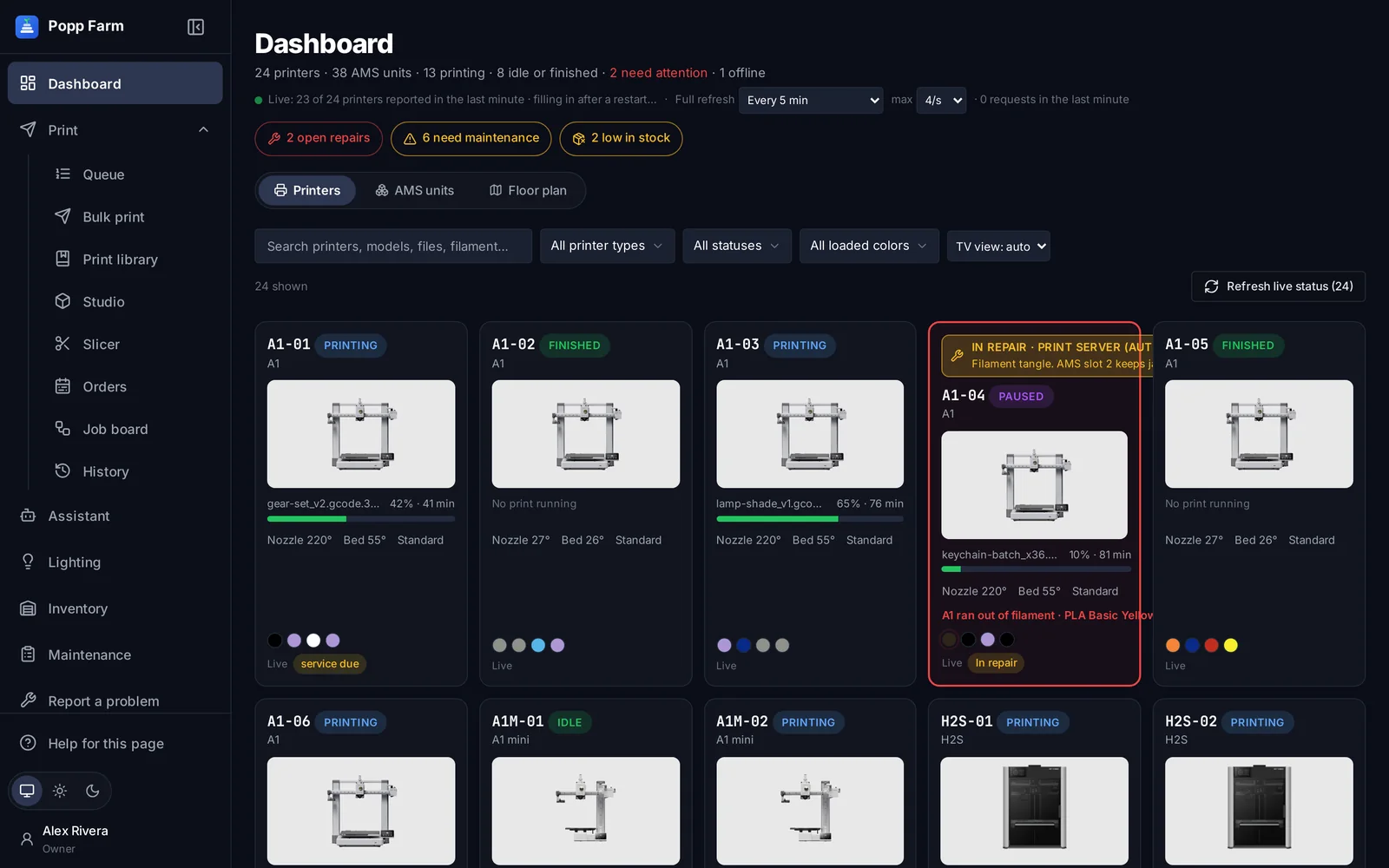
Ask in plain words
About printers, queue, history, stock, maintenance and orders.
Read-only tools
Nothing sends or changes.
Runs with your rights
Sees only what you may see.
MCP endpoint
For Claude Desktop and Claude Code, with an app token.
Your Anthropic key
Added by an Owner in Settings.
Needs a keyBuilt for the shop floor
Every screen in Popp Farm works on a phone and a tablet: no sideways scrolling, big tap targets, tables that turn into cards. Put the dashboard on the wall TV and a QR code on every printer.
- QR codes for every printer: a scan opens its window
- Report a problem in two taps
- TV view for the wall screen, kept awake
- Mark plates clear and send the next job from the floor
- A help article for every page, built in
See it on your own printers
Start free with up to 3 printers, or try any paid plan free for 14 days. Connect your Bambu Lab account and your printers appear in minutes.
No install · No LAN setup · Nothing prints until a person says the plate is clear